Adding a single button or embeddable widget
The Showpass WordPress plugin lets you add "Buy Now" buttons or embed the full purchase widget directly on your pages using the [showpass_widget] shortcode. Perfect for linking to specific events, products, or memberships.
What is a shortcode?
A shortcode is a small piece of text wrapped in square brackets [] that WordPress replaces with dynamic content. WordPress transforms [showpass_widget] into a button or embedded purchase interface.
How to add the widget shortcode
Step 1: Open the page editor
- Go to the WordPress page or post where you want the button
- Click Edit to open the block editor
Step 2: Add a Shortcode block
- In the editor, click the + icon to add a new block
- Search for and add the Shortcode block
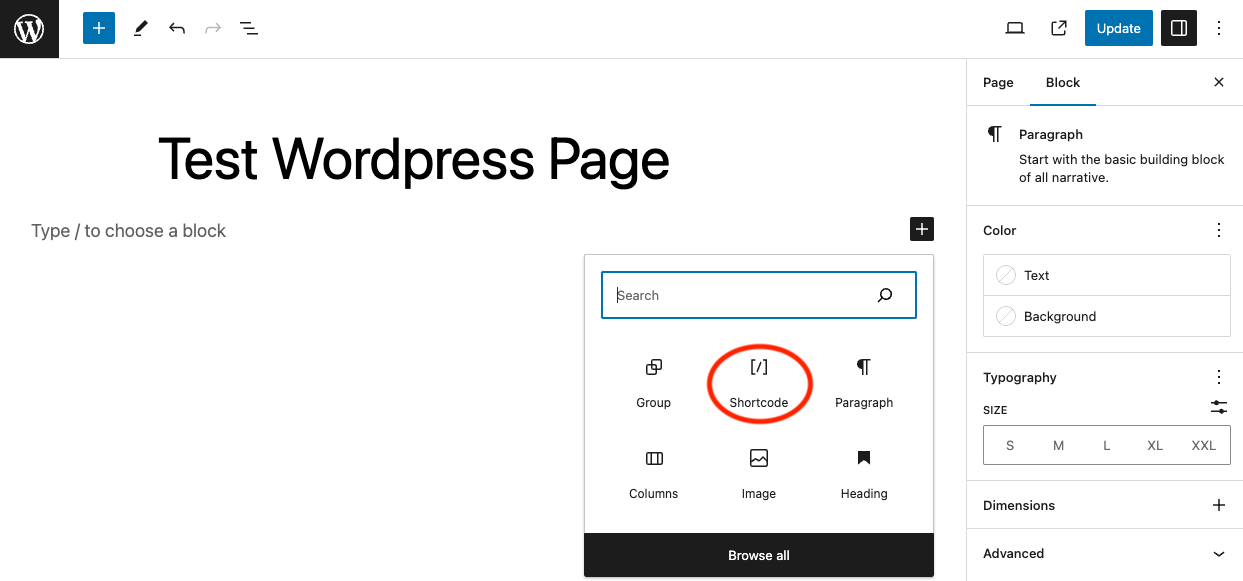
- Type your
[showpass_widget]shortcode with parameters - Click Update or Publish
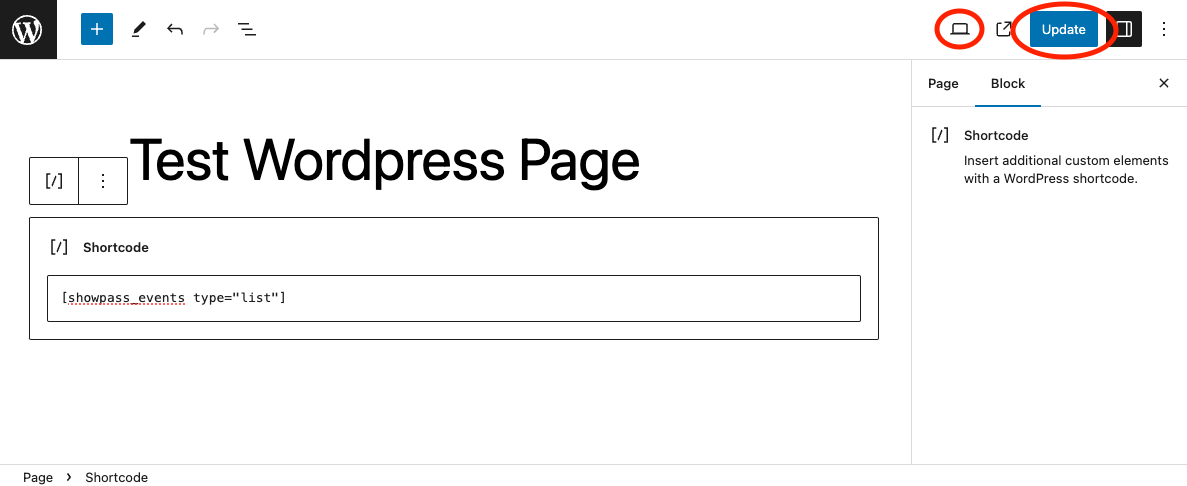
Tip: You can also paste the shortcode directly into a Paragraph block in most themes.
Basic button usage
Create a simple button that opens the Showpass purchase widget in a pop-up:
[showpass_widget slug="your-event-slug"]
Example: For https://showpass.com/my-awesome-concert, use:
[showpass_widget slug="my-awesome-concert"]
This creates a button with the default label "Get Tickets". When clicked, the widget opens for ticket purchases.
Embedding the widget directly
Display the purchase widget directly on the page (no button, no pop-up):
[showpass_widget slug="your-event-slug" embedded="true"]
Use case: Dedicated ticketing pages where customers can purchase immediately without clicking a button.
Widget types
The [showpass_widget] shortcode supports three types via the type parameter.
Events (default)
Parameter: type="event"
For selling event tickets.
Required: slug
Examples:
[showpass_widget type="event" slug="annual-gala"]
[showpass_widget type="event" slug="annual-gala" embedded="true"]
Note: If
typeis omitted,eventis assumed.
Products
Parameter: type="product"
For selling merchandise or other products.
Required: id (numeric product ID from Showpass)
Examples:
[showpass_widget type="product" id="12345"]
[showpass_widget type="product" id="12345" embedded="true"]
Memberships
Parameter: type="membership"
For selling memberships.
Required: id (numeric membership group ID from Showpass)
Examples:
[showpass_widget type="membership" id="67890"]
[showpass_widget type="membership" id="67890" embedded="true"]
Customization parameters
Control what the widget loads and how it behaves using these parameters.
Event slug
Parameter: slug="your-event-slug"
Use case: Link to a specific event (required for type="event")
Value: The unique part of your Showpass event URL
Example: For showpass.com/halloween-party, the slug is halloween-party
[showpass_widget slug="halloween-party"]
Product or membership ID
Parameter: id="12345"
Use case: Link to a product or membership
Value: Numeric ID from your Showpass dashboard
Finding the ID:
- Log in to Showpass dashboard
- Go to Products or Memberships
- Note the numeric ID next to the item name
Examples:
[showpass_widget type="product" id="5021"]
[showpass_widget type="membership" id="9847"]
Button text
Parameter: label="Your Custom Text"
Use case: Change the button label
Default: "Get Tickets"
Examples:
[showpass_widget slug="summer-fest" label="Buy Tickets"]
[showpass_widget slug="workshop" label="Register Now"]
[showpass_widget type="product" id="123" label="Shop Now"]
Embedded mode
Parameter: embedded="true"
Use case: Display the widget directly on the page (no button)
Default: false (shows a button)
Example:
[showpass_widget slug="concert" embedded="true"]
When to use:
- Dedicated ticketing pages
- Checkout pages
- Landing pages with single purchase focus
Tracking ID
Parameter: tracking_id="your-tracking-token"
Use case: Directly set an affiliate tracking ID for this widget (alternative to URL-based aff parameter)
Value: Your Showpass tracking token
Example:
[showpass_widget slug="concert" tracking_id="8ee54af5"]
Note: This is a shortcode parameter alternative to using ?aff=token in the URL. See Widgets and affiliate tracking links for more details.
Show specific tickets
Parameter: show_specific_tickets="ticket-id-1,ticket-id-2"
Use case: Show only specific ticket types in the widget
Value: Comma-separated list of ticket type IDs
Example:
[showpass_widget slug="event" show_specific_tickets="123,456"]
Custom CSS class
Parameter: class="your-css-class"
Use case: Apply custom CSS classes to the button for styling
Default: "showpass-button" (with default icon)
Important: When you provide a custom class, the default ticket icon is not included. If you want the icon, use the default class or add your own icon via CSS.
Example:
[showpass_widget slug="event" class="btn btn-primary my-custom-button"]
Note: If you've set a default button class in admin settings (option_showpass_default_button_class), that will be used instead of showpass-button when class is not specified.
Keep shopping button text
Parameter: keep_shopping="true|false"
Use case: Override the global "Keep Shopping" button setting for this widget
Default: Uses global admin setting (option_keep_shopping)
Values:
"true"- Show "Keep Shopping" button"false"- Show "Close" button instead
Example:
[showpass_widget slug="event" keep_shopping="false"]
Note: This per-widget setting overrides the global admin setting.
Widget description visibility
Parameter: show_widget_description="true|false"
Use case: Override the global widget description setting for this widget
Default: Uses global admin setting (option_show_widget_description)
Example:
[showpass_widget slug="event" show_widget_description="true"]
Complete examples
Basic event button
[showpass_widget slug="summer-concert"]
Custom button with text
[showpass_widget slug="summer-concert" label="Get Your Tickets"]
Embedded event widget
[showpass_widget slug="summer-concert" embedded="true"]
Product purchase button
[showpass_widget type="product" id="12345" label="Buy Merchandise"]
Membership signup (embedded)
[showpass_widget type="membership" id="67890" embedded="true"]
Widget with tracking and custom styling
[showpass_widget slug="annual-gala" label="Buy Tickets" tracking_id="campaign-123" class="custom-btn"]
Styling the button
Customize the button appearance with CSS in your theme:
/* Target the Showpass widget button */
.showpass-widget-button {
    background-color: #9e2a2b !important;
    color: white !important;
    padding: 15px 30px !important;
    border-radius: 8px !important;
    font-size: 18px !important;
    font-weight: 600 !important;
}

.showpass-widget-button:hover {
    background-color: #7d2122 !important;
}
Where to add:
- Appearance → Customize → Additional CSS
- Or in your child theme's
style.css
Common use cases
Event landing page
Create a dedicated page for each event with embedded widget:
[showpass_widget slug="spring-gala" embedded="true"]
Multiple events on one page
Add multiple buttons for different events:
[showpass_widget slug="concert-a" label="Concert A Tickets"]
[showpass_widget slug="concert-b" label="Concert B Tickets"]
[showpass_widget slug="concert-c" label="Concert C Tickets"]
Sidebar widget
Add a button in your sidebar (using a Shortcode widget or block):
[showpass_widget slug="next-show" label="Buy Tickets"]
Product showcase
Embed product purchase widgets on product pages:
[showpass_widget type="product" id="501" embedded="true"]
Troubleshooting
Button doesn't appear
- Check plugin is active: Plugins → Installed Plugins
- Verify shortcode syntax: Ensure straight quotes, not curly quotes
- Clear cache: Browser and WordPress caching plugins
Widget shows wrong event/product
- Verify slug or ID: Check the exact value from Showpass
- Test directly on Showpass: Confirm the event/product exists
- Check for typos: Slugs and IDs are case-sensitive
"Connection blocked" error
- Whitelist your domain in Showpass dashboard
- Check HTTPS: Ensure consistent protocol usage
- Review browser console: Look for specific error messages
Embedded widget styling issues
- Use custom CSS: Target the embedded widget container with CSS
- Check container width: Ensure parent container has adequate width
- Theme conflicts: Check for CSS conflicts with your theme
Next steps
Now that you know how to add purchase buttons and widgets, explore:
- Display event lists – Show multiple events in grid/list format
- Create event detail pages – Build dedicated pages for each event
- Add a calendar widget – Display interactive event calendar
- Customize with templates – Build custom layouts with raw data
Additional resources
- Showpass Help Center: help.showpass.com
- WordPress Shortcode documentation: codex.wordpress.org/Shortcode
- CSS customization guide: wordpress.org/support/article/css